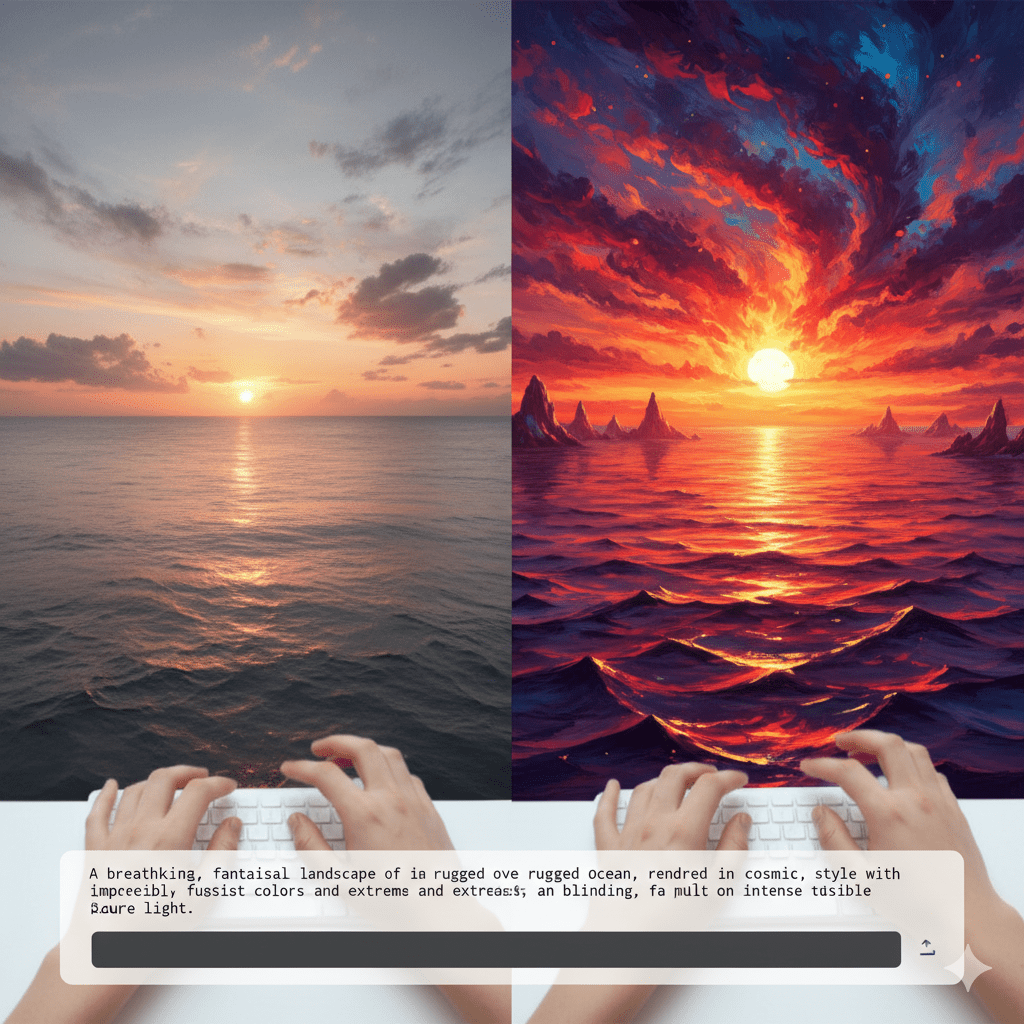
Have you ever taken a photo you absolutely loved, but when you looked at it later, it seemed a little… flat? Maybe the colors weren’t bright enough, or there was a shadow covering your face? Getting that “perfect” photo usually means spending hours clicking buttons in complicated editing software. It can feel like you need to be a wizard just to make a picture look good! (Best Prompt for Photo Editing in ChatGPT)
But what if I told you there’s a secret shortcut? A way to tell a super-smart robot exactly what you want, and it does the hard work for you? That shortcut is finding the best prompt for photo editing in ChatGPT.
This isn’t just about making your vacation pictures pop; it’s about unlocking a new level of human-AI collaboration for creators. Whether you’re a photographer, a blogger, or just someone who loves sharing life online, this guide will turn that complicated photo editing mountain into a molehill. We’re going to teach you how to talk to the AI like a seasoned pro so it gives you stunning results every single time. Get ready to automate your creative workflow automation and see how AI and creativity come together perfectly!
The Magic Behind the Curtain: What Even Is a Prompt?
Before we dive into the secret recipe for the best prompt for photo editing in ChatGPT, let’s stop and look at what we’re actually doing. Think of a computer program like a puppy 🐶. It’s smart, it wants to please you, but it doesn’t know what you want unless you give it a clear command.
A prompt is simply the clear command you give to the AI. When you use tools like ChatGPT or Gemini, you’re “prompting” them—you’re asking them a question or giving them instructions.
Imagine this in a simple way:
- Bad Prompt: “Fix my picture.” (The puppy looks at you confused 🥺. Fix how? What’s wrong with it?)
- Good Prompt: “Can you please fetch the red ball near the big tree, then bring it back and sit down?” (The puppy wags its tail and follows the detailed steps!)
When you use the best prompt for photo editing in ChatGPT, you aren’t asking the AI to do the editing itself (ChatGPT is a language model, not a graphic editor, so it can’t directly change a photo). Instead, you are asking it to be your super-smart editor assistant. You tell it exactly what kind of edits you want, and it writes out the perfect, detailed steps and settings for you to use in any actual photo editing software (like Photoshop, Lightroom, or a free app!).
This is the foundation of effective human-AI collaboration for creators. You bring the human touch—the feeling, the mood, the idea—and the AI brings the technical know-how—the exact numbers and steps.
Mia’s Muddle: A Story of Photo Frustration
Let me tell you about Mia. Mia runs a small online bakery 🧁. She bakes the most delicious cookies and cakes, and her photos on Instagram should be just as tempting! But she was having a big problem.
Her photos looked dark and cloudy. She wanted that bright, sunny, “food blogger” look. She spent an hour editing just one picture—playing with sliders for brightness, contrast, and saturation—and still, it looked wrong. And, She felt like she was wasting time that she could have spent baking! This lack of a smooth creative workflow automation was burning her out.
One day, Mia tried asking ChatGPT for help.
❌ Her first, bad prompt was: “How to make my food photo look good?”
✅ The answer she got was general: “Adjust the contrast and exposure.” (Not helpful!)
Then, Mia learned the secret to the best prompt for photo editing in ChatGPT. She started giving the AI a Role, a Goal, and Specific Steps.
🌟 Her New, Powerful Prompt:
“Act as a professional food photographer and editor specializing in ‘light and airy’ style. I have a picture of a stack of chocolate chip cookies taken indoors on a cloudy day. My goal is to make the photo look bright, warm, and mouth-wateringly detailed. Provide me with a step-by-step editing preset (in simple language) for a mobile app like Snapseed or a program like Lightroom. Specifically, tell me the exact settings to adjust for Exposure, White Balance (Temperature and Tint), Shadows, Highlights, and Sharpness to achieve this effect. Use specific, numerical values.”
The Transformation: From Cloudy to Click-Worthy
What happened next? ChatGPT gave her a list like:
- Exposure: Increase by +0.75 stops (This makes it brighter).
- White Balance (Temp): Increase to +15 (This adds warmth, making it sunny!).
- Shadows: Lift by +30 (This makes the dark parts of the cookie softer).
- Sharpness: Increase to +40 (This makes the chocolate chips look crispy and detailed).
Mia followed the steps, and in two minutes, her cookie photo went from “meh” to “MUST EAT!” This showed her the true power of AI and creativity working together, and it saved her hours every week. The solution to her problem wasn’t a complicated tool; it was knowing how to ask the right question—the best prompt for photo editing in ChatGPT.
The Four Super Ingredients of the Best Prompt
To get results like Mia’s, you need to think like a chef creating the perfect recipe. Your prompt needs four “super ingredients.” These ingredients create the template for the best prompt for photo editing in ChatGPT.
1. The Role (Who is the AI?): 🎭
Always start by telling the AI who it is. This forces the AI to use specific vocabulary and knowledge.
- Instead of: “Be helpful.”
- Try: “Act as a professional fine-art landscape photographer with expertise in dramatic, low-light editing.”
2. The Context (What is the Photo?): 🖼️
Describe the photo you have. The AI needs to know what it’s working with to give relevant advice.
- Instead of: “My picture.”
- Try: “The photo is a portrait of a woman at a coffee shop, taken indoors with low, warm lighting. The original image is slightly blurry and dark.”
3. The Goal (What Do You Want?): ✨
Describe the desired final look or mood. This is the creative, human part. Do you want it to look vintage, cinematic, or clean and simple?
- Instead of: “Make it better.”
- Try: “My goal is to give the image a cinematic, moody feel—deep shadows, slightly desaturated colors, and a strong contrast that makes the subject ‘pop’ out.”
4. The Format & Specificity (How Should It Tell You?): 📋
The AI can’t actually click the buttons, so you need to tell it how to deliver the instructions. This is where you leverage creative workflow automation.
- Instead of: “Tell me what to do.”
- Try: “Provide the output as a bulleted list of six specific adjustments (with numerical values from -100 to +100) for Exposure, Contrast, Saturation, Shadows, Highlights, and Sharpness. Crucially, explain each adjustment in simple terms (like you’re talking to a 10-year-old).”
By putting these four parts together, you have the formula for the best prompt for photo editing in ChatGPT. This structured asking is what moves you from basic AI and creativity dabbling to true human-AI collaboration for creators.
Deep Dive: Three Advanced Prompt Templates for Creators
To truly master the best prompt for photo editing in ChatGPT, you need ready-to-use templates. Here are three powerful, evergreen examples you can copy, paste, and adjust. Remember to insert your own [Bracketed Information]!
Template 1: The ‘Travel & Adventure’ Look (Vibrant & Punchy)
This is perfect for landscape, street, or travel photography where you want colors to be bold and details to be sharp.
“Act as a leading travel and adventure photographer known for extremely vibrant and detailed images. My original photo is a [mountain landscape taken on a bright but hazy afternoon]. I want the final result to have a ‘National Geographic’ look: vivid blues, rich greens, and a high level of detail. Please provide a five-step editing instruction list, specifically focusing on Clarity, Vibrance, HSL Blue Saturation, and Dehaze. For each of the five steps, provide a numerical value and a simple explanation of why you made that choice, so I can understand the process and improve my own editing.”
Template 2: The ‘Minimalist & Fashion’ Look (Clean & Soft)
Ideal for portraits, lifestyle, or product shots that require a clean, soft, and slightly desaturated aesthetic.
“Adopt the persona of a minimalist fashion photographer whose work is recognized for its clean lines, soft light, and muted color palette. The image I am editing is a [product shot of a white t-shirt on a wooden table]. My primary objective is to make the background perfectly white, remove any yellow color cast, and soften the shadows on the product. Please outline a detailed editing preset that includes specific instructions for White Balance (Tint & Temperature), Black Point (Shadows), and Saturation. Structure the output as a set of actionable steps for creative workflow automation, using simple language and specific values.”
Template 3: The ‘Vintage & Film’ Look (Nostalgic & Grainy)
Use this for photos where you want to add an artistic, retro, or analog film effect. This is a great example of human-AI collaboration for creators.
“Assume the role of a digital editor specializing in recreating the aesthetic of Kodak Portra 400 film. I am working on a [candid street photo taken at dusk]. I want the final edit to have a soft, warm, slightly faded look with noticeable film grain. The colors should be subtly desaturated with warm highlights and lifted shadows. Provide a complex five-step guide for achieving this effect, including specific settings for Shadow Tint (to add green/magenta), Grain Amount, Color Saturation, and Highlight Tone. Explain the steps logically, focusing on the technical steps needed to achieve the artistic vision.”
Real-World Applications: Creators Using AI in Their Workflow
The use of the best prompt for photo editing in ChatGPT isn’t just a fun trick; it’s a powerful tool helping real professionals every day. This shift toward AI and creativity is changing how work gets done.
1. The E-commerce Studio: Time Savings (Creative Workflow Automation)
A large e-commerce company needed to edit thousands of product photos quickly. Instead of training dozens of new editors, they created 5 master prompts for different product categories (e.g., ‘Jewelry Sparkle Prompt,’ ‘Apparel True-Color Prompt’). They fed these prompts into an AI and received consistent, technical editing steps, which were then used to create automated actions in their software. Result: They cut editing time by 60% and achieved a much higher level of color consistency across their entire website.
2. The Wedding Photographer: Batch Consistency (Human-AI Collaboration)
A busy wedding photographer was tired of making the same minor adjustments to hundreds of photos from a single event. She used the best prompt for photo editing in ChatGPT to define her signature “light and moody” style. She’d ask, “How to apply a ‘Kodak Gold Film’ look to a bright outdoor portrait?” The AI provided a detailed preset. She applied this to all her images, saving her over 20 hours of manual work per wedding, allowing her to focus on the truly unique, artistic edits.
3. The Instagram Influencer: Niche Development (AI and Creativity)
An influencer specializing in urban architecture wanted a unique, recognizable look. They used AI to define a “Cyberpunk Cityscape” edit: ultra-high contrast, strong neon blues and magentas, and heavy shadow detail. The best prompt for photo editing in ChatGPT helped them translate their vague artistic idea into a precise, repeatable technical formula. This distinct visual style helped them double their engagement in four months.
Tool Recommendations: Your New AI Photo Toolbox
While ChatGPT and Gemini help you write the perfect plan, you still need tools to execute the plan. Think of the AI as your architect, and these are the construction tools! This is key to effective creative workflow automation.
- Adobe Lightroom: The industry standard for photographers. It uses sliders and number values that match the instructions from your best prompt for photo editing in ChatGPT perfectly. (Official Website: Adobe.com)
- Snapseed (Mobile App): A free, powerful app by Google. Excellent for quick, high-quality edits on your phone. Great for following the simple, step-by-step instructions the AI provides.
- Luminar Neo: Uses AI inside the program to do complex tasks (like sky replacement) with a single click. You can use your prompt-generated settings here for the final touches.
- Canva: Amazing for quickly applying simple color filters and text overlays once the core image is edited using the AI’s plan.
Actionable Tips: Making Your Prompts Even More Powerful
Here are some quick-fire ways to level up your use of the best prompt for photo editing in ChatGPT and deepen your human-AI collaboration for creators.
- Specify the Software: Always mention the editing software! Say, “Provide settings for Adobe Lightroom Classic” or “GIMP.” This helps the AI use the correct technical terms.
- The Power of Negation: Tell the AI what you don’t want. For example: “I want deep colors, but avoid over-saturating the reds and magentas.” This makes the output more precise.
- Use Visual Language: Describe textures and feelings. Use words like soft, crunchy, velvety, moody, sterile, or warm. The AI is a language model and understands these descriptive cues!
- Always Ask for the ‘Why’: Add the line, “Explain the logic behind the top two most important adjustments.” This turns the AI from a mere tool into a teacher, helping you learn the concepts of editing.
Prompt for Gaming UI/UX: The Secret AI Workflow That Cuts Design Time by 80%
Conclusion: From Prompt to Perfection
Photo editing no longer has to be a confusing chore. By mastering the art of the prompt—by giving the AI a clear Role, Context, Goal, and Format—you transform ChatGPT into the world’s best editing assistant.
This synergy is the future of AI and creativity. You, the human, provide the vision and the emotion. The AI provides the technical blueprint and the speed, achieving true creative workflow automation. This guide has shown you the elements of the best prompt for photo editing in ChatGPT, taking you from a beginner struggling with sliders to a seasoned creator who uses human-AI collaboration for creators to produce stunning, consistent, and professional results in a fraction of the time.
Now, go grab your favorite photo, use one of our templates, and watch the magic happen! The secret to instant pro-level images is waiting right there in your keyboard. Happy editing
Prompt Builder Salesforce: The Secret Recipe Book That Unlocks 10X Creative Workflow Automation