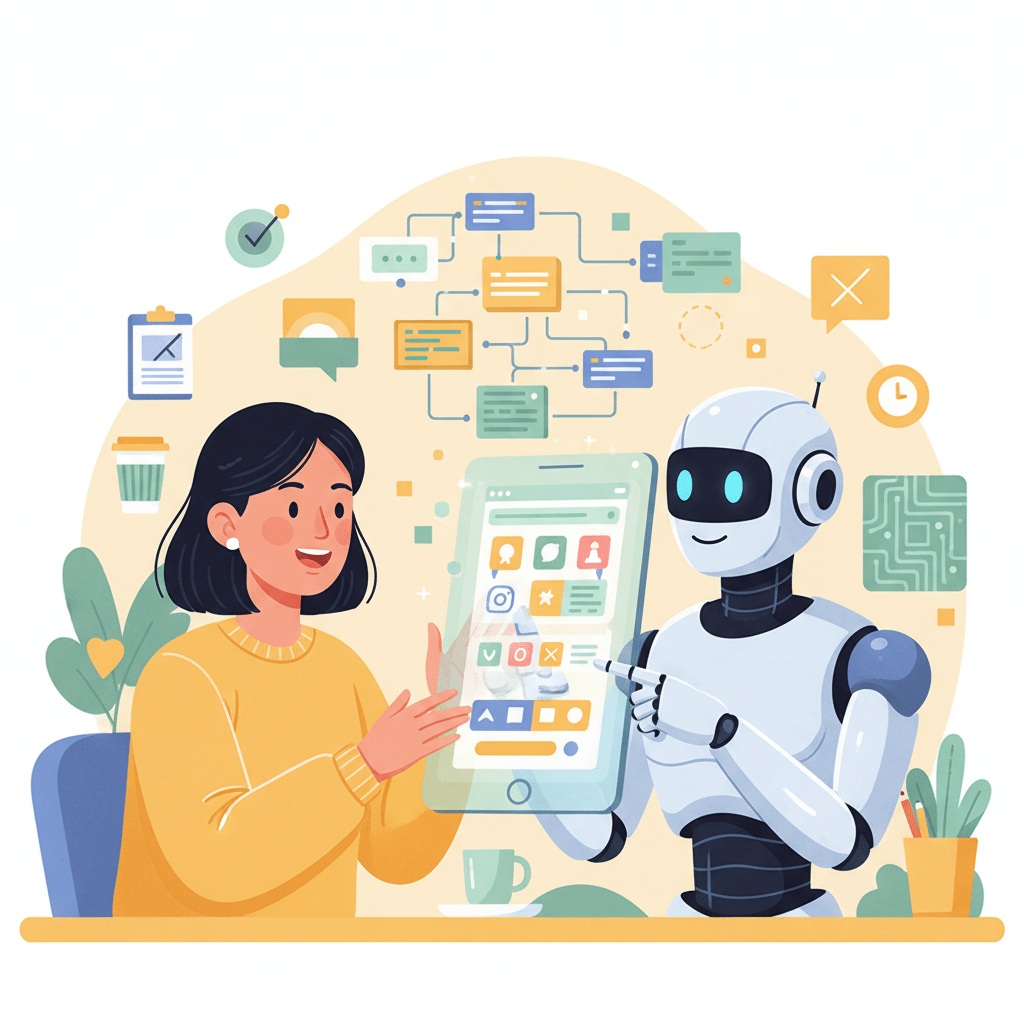
Have you ever had a brilliant idea for an app? Maybe you’re a baker who dreams of an app for custom cake orders, or a student who wants to build a tool to organize study groups. You see the app clearly in your mind. But then, you hit a giant, expensive wall. (how to use ai to create an app for free)
You think, “I don’t know how to code,” or “Hiring a developer costs thousands of dollars I don’t have.” So, your amazing idea just… sits there.
This is the story of Sara. Sara is an amazing baker, famous in her town for her artistic cakes. She dreamed of a simple app where her customers could see her weekly specials, place a custom order, and pay. yest, She looked it up, and the first website she saw said a simple app could cost $20,000. She sadly closed the tab.
But then, Sara discovered a secret. She found out how to use AI to create an app for free. And in this post, I’m going to tell you that secret, too.
Forget everything you think you know about app development. You don’t need to be a tech genius. And, You don’t need a lot of money. You just need your great idea and a new kind of partner: Artificial Intelligence (AI).
What Does “Using AI to Create an App” Even Mean? (ELI5)
Let’s make this simple. Imagine you want to build a super-cool Lego castle.
- You are the “Master Builder” (the creator). You have the vision. You know you want a tall tower, a blue roof, and a working drawbridge.
- The AI is like a set of magic instructions and a super-smart helper all in one.
- No-Code Tools are your box of digital Lego bricks.
Before, you had to either know how to make your own Lego bricks from plastic (coding) or pay someone a lot of money to build your castle.
Now, you can just tell your AI helper what you want.
You say, “I want to build a three-screen app for my bakery.”
The AI helper instantly draws up a perfect blueprint. It says, “Great! I’ve planned it all out. You’ll need these 10 Lego bricks from your ‘No-Code’ box. Put them together in this order.”
This is the magic. The AI plans, and you build. This is the heart of human-AI collaboration for creators. The AI doesn’t replace you; it just makes you faster and smarter. It turns your AI and creativity into a real, working product.
The Story of Sara: A Real-World (Simple) Example
So, let’s go back to Sara, our baker. Here’s how her story changed.
She sat down at her computer, still feeling a little doubtful. She opened a free AI tool (like Google’s Gemini or OpenAI’s ChatGPT).
Instead of searching “how much does an app cost,” she typed:
“I’m a baker. I want to build a very simple, free app for my customers. I need three pages:
- A ‘Welcome’ page with pictures of my cakes.
- An ‘Order’ page with a form (Name, Phone Number, Cake Type, Pickup Date).
- A ‘Thank You’ page after they order.
I have no money and I don’t know how to code. What is the absolute easiest and cheapest way to do this?”
The AI didn’t laugh. It didn’t send her a bill. Instead, it gave her a simple, friendly answer.
The AI said, “This is a perfect project! You can absolutely do this for free. The best way is to use a ‘no-code’ tool called Glide. It lets you build an app from a simple Google Sheet. Here are your 5 steps:”
- Create a new Google Sheet. Make 3 tabs: ‘Cakes’, ‘Orders’, and ‘Customers’.
- Go to the Glide website and sign up for a free account.
- Connect your Google Sheet to Glide.
- Glide will automatically create a basic app. You just need to drag and drop elements to make it look pretty.
- When someone fills out the ‘Order’ form in your app, it will show up instantly in your ‘Orders’ Google Sheet.
Sara was shocked. She spent the next two hours following the AI’s instructions. When she got stuck, she just asked the AI, “How do I add a picture in Glide?” and it told her.
By the end of the night, Sara had a real, working app. She sent the link to her friends, and one of them placed a test order. Ding! The order appeared in her Google Sheet. It was magic.
This is how to use AI to create an app for free. It’s not about the AI writing millions of lines of code. It’s about the AI being your guide, your planner, and your free technical expert, helping you use free tools that already exist.
Your Step-by-Step Guide on How to Use AI to Create an App for Free
Are you ready to be like Sara? Here is your official 5-step blueprint.
Step 1: Dream Up Your Big Idea (And Make it Clear)
You can’t ask the AI for help if you don’t know what you want. Before you type anything, grab a piece of paper and answer these questions. Be as simple as possible.
- What is the ONE main thing my app does? (e.g., “It tracks my plants and reminds me to water them.”)
- Who is it for? (e.g., “Me, and other people who forget to water their plants.”)
- What are the 3 most important pages/screens?
- A list of “My Plants.”
- A page to “Add a New Plant.”
- A “Settings” page for reminders.
This is your “User Story.” Now you’re ready for your AI helper.
Step 2: Talk to Your AI Helper (The “Prompting” Part)
This is the most important part of how to use AI to create an app for free. You need to learn how to “prompt” (talk to) your AI.
Open a free Generative AI tool. Be specific, just like you were on paper.
Bad Prompt: “Make me an app.” (This is like saying “Build me a house” with no other details.)
Good Prompt: “I want to build a simple, free app to track my house plants. I need 3 screens: ‘My Plants’, ‘Add New Plant’, and ‘Settings’. I want to build this without coding. What is the best no-code tool, and what are the exact steps to set it up?”
Step 3: Get Your “Blueprint” from the AI
Now, watch the magic. The AI will give you a complete plan. It will:
- Suggest a Tool: “Based on your needs, you should use Adalo or Bubble’s free plan.”
- Define Your Database: “You will need a ‘Database’ (don’t worry, this is just a list) with ‘Plant Name’, ‘Photo’, and ‘Watering Schedule’.”
- Give You Logic: “You’ll need to create a ‘workflow’. When the ‘Add New Plant’ button is clicked, it should ‘create a new thing’ in your ‘Plant’ database.”
This blueprint is your treasure map. The AI has done the “hard thinking” part—this is creative workflow automation in action. It’s not just AI and creativity; it’s AI handling the logic so you can be creative.
Step 4: Pick Your “Digital Lego Set” (Free No-Code Tools)
The AI will point you to these tools, but here are the most popular ones. They all have free plans that are perfect for starting out.
- Glide: The easiest. If you can use a Google Sheet, you can use Glide. Perfect for simple apps based on lists (like Sara’s bakery app or a staff directory).
- Adalo: A great “all-around” builder. It’s more visual, like building with digital Legos. You can publish to the real Apple and Google App Stores.
- Bubble: The most powerful. This is less like Legos and more like a full-on workshop. The learning curve is steeper, but you can build almost anything (like your own Twitter or Airbnb) without code.
Step 5: Build It! (The Fun Part)
Now, you just follow the steps. Sign up for the free tool the AI recommended. Open your “Blueprint” from the AI in one window and your no-code tool in the other.
This is the beautiful moment of human-AI collaboration for creators. You will be dragging and dropping buttons, and the AI’s plan will tell you what to do with them.
When you get stuck (and you will!), just go back to the AI.
- “How do I make a button in Bubble save a user’s name?”
- “How do I sort my list in Glide by ‘Date Added’?”
The AI is your patient, 24/7 tutor who will never get annoyed with your questions.
Does This AI App Method Really Work? 3 Quick Examples
This isn’t just a theory. People are doing this right now.
- The Student: Raj, a college student, needed a way to coordinate his robotics club. Using AI, he planned a simple app to “check in” and “check out” shared tools. He built it in Adalo in one weekend. Result: No more lost tools, and he had a real app for his resume.
- The Small Business: We already know Sara. Result: Her app freed her from 10+ phone calls a day. She focused on baking, and her custom orders increased by 20% in the first month.
- The Freelancer: Maria, a writer, wanted a cooler portfolio than just a website. She used AI to plan a simple app that looked like a ‘Tinder for articles,’ where people could swipe through her work. She built it in Glide. Result: A potential client was so impressed they hired her on the spot.
The Real Secret to How to Use AI to Create an App for Free: Your Creativity
Here is the one thing you must understand. The AI is incredibly smart, but it has no heart. It has no dreams. It doesn’t know your neighborhood, your customers, or your passion.
That’s your job.
The AI can’t invent Sara’s amazing cake recipes. It can only help her sell them. AI and creativity is a partnership. The AI handles the technical, you handle the original.
This whole process of learning how to use AI to create an app for free is not about becoming a tech expert. It’s about giving your amazing ideas a way to exist in the world, without a $20,000 price tag.
Even the people who make AI, like OpenAI, say that their goal is to “augment human capabilities,” not replace them. You are the creator; the AI is just the most powerful tool you’ve ever had. As HubSpot often points out, automating the hard parts gives you more time to be human—and to be creative.
Common Questions (FAQ) About How to Use AI to Create an App for Free
Q: Is it really 100% free? What’s the catch?
A: Yes, it can be 100% free. The “catch” is that free plans have limits. Your Glide app might have a “Made with Glide” logo on it. Your Bubble app’s free plan might be a little slower. But will it work? Will it be free? Yes and yes. You can always pay to upgrade after your app is successful.
Q: Will my app work on both iPhone and Android?
A: Yes! The tools we mentioned (Glide, Adalo, Bubble) build “web apps” or “progressive web apps” (PWAs). This means they work perfectly on any phone’s web browser (Chrome, Safari, etc.). You just share a link. Tools like Adalo even let you publish to the real Apple App Store and Google Play Store.
Q: What if my app idea is super complex, like a new social media network?
A: The AI can still help you! This is the perfect test for creative workflow automation. Your prompt would be different. You’d say, “My idea is a new social network for cat lovers. This is too big for a free no-code tool. What is the first, smallest version I can build to test my idea?” The AI will help you plan a “Minimum Viable Product” (MVP). It will still save you weeks of time.
Q: What’s the best AI tool to use for this?
A: For the “planning” part, any powerful Generative AI will work. Google’s Gemini (Advanced) is fantastic for breaking down complex logic. OpenAI’s ChatGPT (especially the paid version) is also a genius-level planner. The free versions are more than powerful enough to get you started.
Your Turn to Build the Next Big Thing
That wall that stood between your idea and the real world? It’s gone. It’s been completely demolished by AI.
Today, the only things you need are:
- A creative idea (that’s all you).
- The willingness to ask an AI for a plan.
- A free afternoon to play with digital Legos.
You no longer have any excuses. You know how to use AI to create an app for free. Now You have the blueprint. You have the tools.
And once your app is built, you’ll want to tell people about it. Learning how to market your new creation, perhaps by mastering Meta Ads Best Strategies, can help you find your first users.
So, what amazing idea are you going to build today?