Let’s tell a quick story. Meet Sarah. (meta ads active but not spending)
Sarah runs a wonderful little online shop selling handmade dog bandanas. She spent all weekend making her best ad ever. It has a cute video of a Golden Retriever, a happy customer review, and a special 10% off discount.
She logs into her Meta Ads Manager, carefully builds her campaign, and hits the big green “Publish” button. She waits a few minutes, hits “refresh,” and… success! The “Delivery” column says “Active.”
“It’s working!” she thinks.
She comes back an hour later. The “Amount Spent” column says $0.00. She comes back four hours later. “Active.” Amount Spent: $0.00. She comes back the next morning, heart pounding. “Active.” Amount Spent: $0.00.
A wave of panic sets in. “Is it broken? Did Meta take my money? Why are my meta ads active but not spending?”
If this sounds like you, take a deep breath. You are not alone. This is one of the most common and frustrating problems for everyone, from beginners to big companies.
ChatGPT DAN Prompt: Why Smart Creators Are Ditching It for Real AI Mastery
The good news? Your ad isn’t broken, and your money is safe. Your ad is just “stuck” in the lobby, waiting to be called into the theater.
This guide is your 5-minute fix-it checklist. We’re going to explain why this happens (like you’re 10 years old) and then walk through the exact steps to “un-stick” your ad and get it in front of customers.
First, What Does “Active” Actually Mean? (meta ads active but not spending)
This is the biggest point of confusion. We see “Active” and we think it means “My ad is actively being shown to people right now.”
That’s not what it means.
Think of it this way: “Active” just means your ad finished its school test and got an “A.” Meta’s computers looked at your ad (your picture, your words, your website) and said, “Yep, this ad follows all our rules. It’s approved. It is allowed to be in our big ad show.”
“Active” does not mean “Your ad is winning the show.”
So, if your ad is “Active” but has $0 spent, it means you are approved to run, but you are currently losing every single chance to be shown.
Why Your “Active” Ad is Losing (The Super-Simple Auction)
“Losing? What am I losing?”
You’re losing an “auction.”
Imagine this: Every time you or anyone else opens Facebook or Instagram, a giant, secret, super-fast auction happens in less than a second.
Meta’s computer looks at you and says, “Okay, I have a spot to show an ad. Who wants to show an ad to this person?”
Thousands of ads, including Sarah’s, all raise their hands and yell, “Me! Me! I do!”
Meta’s job is to do two things:
- Make the user happy (show them cool, fun stuff so they don’t leave).
- Make money (show the ad that is most likely to get a click or sale).
Meta’s computer instantly looks at all the ads raising their hands and picks a winner based on three things:
- Your Bid: How much money you’re willing to pay.
- Your Ad Quality: Does Meta think this person will like your ad? (Or will they hide it and say “this is spam”?)
- Estimated Action Rate: Does Meta think the person will actually click or buy?
If your meta ads are active but not spending, it means that every single time this auction happens, Meta’s computer looks at your ad and says, “Nope. This other ad is a better choice.”
Our job is to figure out why it’s saying “Nope” and fix it.
How to Change Language in Meta Ads Manager: Your 3-Step Fix
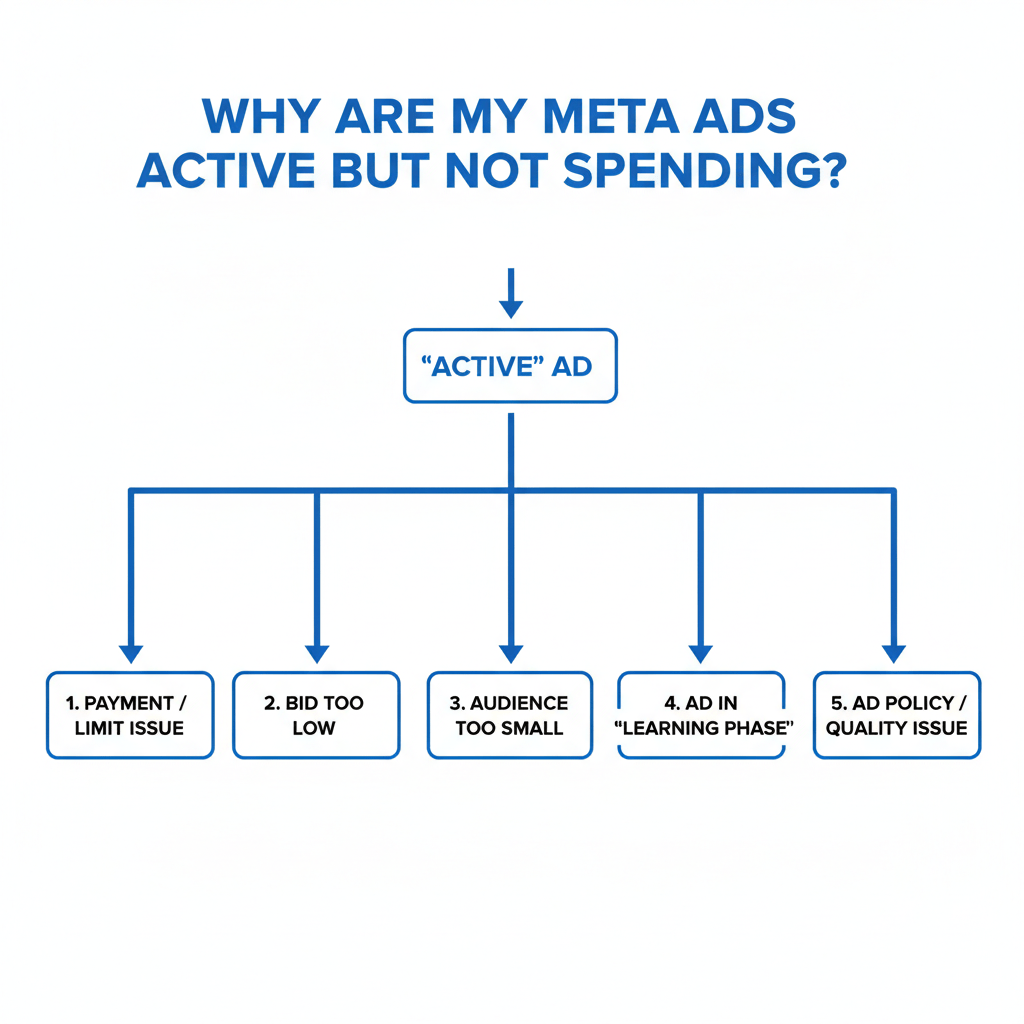
The 7-Step Checklist to Fix Ads That Aren’t Spending (meta ads active but not spending)
Let’s walk through our fix-it list, from the most common (and simple) problem to the least common.
1. The Payment & Limit Problem (Is your wallet locked?)
This is the #1 culprit, especially for new accounts. Meta won’t show your ad if it doesn’t think it can get paid.
- Check Your Payment Method: Go to “Billing & Payments” in your Ads Manager. Is your credit card expired? Did you get a new card and forget to update it? This simple fix solves 30% of cases.
- THE BIG ONE: Check Your Account Spending Limit. This is a safety cap you (or someone on your team) set up a long time ago. It tells Meta, “Do not, under any circumstances, let me spend more than $500 on this entire account.”
If your limit is $500 and you spent $499.80 over the last six months, your new ad (even if it’s “Active”) has no budget to pull from. The account’s wallet is locked.
The Fix: Go to “Billing & Payments,” then “Payment Settings.” Look for “Account Spending Limit.” Is it set? Is it maxed out? You can reset it, change it, or remove it.
2. The Bid Problem (Are you trying to pay 10 cents for a $5 item?)
This is the #2 culprit. When you set up your ad, Meta asked you how you wanted to “bid.”
- If you chose “Bid Cap”: This means you told Meta, “I refuse to pay more than $0.50 for a click.” But what if the “going rate” to reach your audience is $2.00 per click?
- The Analogy: You’re at an auction for a famous painting. Everyone is bidding in the thousands. You stand up and proudly bid “Five dollars!” The auctioneer will just ignore you. You’ll “lose” every time.
- The Fix: Go to your Ad Set settings. Find the “Budget & Schedule” section. Look for “Bid Control.” If it has a number in it, delete it. Or, even better, change your “Bidding Strategy” to “Highest Volume” (it used to be called “Lowest Cost”). This lets Meta bid for you. It’s scary, but it’s the best way to get your ad moving.
- If your Daily Budget is too low: A $1-per-day budget can work, but if you’re in a very expensive and competitive space (like “lawyers” or “insurance”), $1 might not be enough to even enter the auction.
- The Fix: Try raising your budget to $5 or $10 per day just to see if it starts spending. If it does, you know your budget was the problem.
3. The Audience Problem (Are you talking to a room with no one in it?)
When you defined your audience, you told Meta who to show the ad to. But what if that group is way too small?
Sarah might have set her audience to:
- People who live in one specific zip code…
- AND are 30-31 years old…
- AND like Golden Retrievers…
- AND also like the brand “Gucci.”
Meta’s “Audience Definition” box on the right might say “Potential Reach: 1,000 people.” This is a huge red flag. This group is so tiny that Meta can’t find enough of them online at the right time to show your ad.
The Fix: Go back to your Ad Set. Look at your “Audience” settings. Try making it broader.
- Remove one or two layers of targeting. (Maybe just target “Golden Retriever” fans and remove the “Gucci” part).
- Expand the age range.
- Add more cities.
- Watch the “Potential Reach” meter. If it’s in the red, it’s too small. Aim for the green.
4. The “Still in School” Problem (The Learning Phase)
When an ad is brand new, Meta puts it in “school.” This is called the “Learning Phase.”
The ad is “Active,” but Meta is just testing it with a few people here and there. It’s trying to learn what kind of person likes your ad. The system needs to get about 50 “events” (like 50 clicks or 50 sales) in about a week to “graduate” from the learning phase.
If your meta ads are active but not spending, it might just be stuck in this phase. This often happens if you keep making changes.
Do not do this:
- Day 1: Publish ad. (Learning starts)
- Day 2: “It’s not working!” Change the headline. (Learning resets)
- Day 3: “Still slow!” Change the picture. (Learning resets again)
The Fix: Do not touch your ad. Let it run for at least 3 to 5 days. Be patient. Every time you edit your ad, your ad set, or your campaign, you send it right back to school, and it has to start learning all over again.
5. The Ad Creative Problem (Is your ad just… boring?) (meta ads active but not spending)
This is a tough one, but it’s real. Meta knows when people hate your ad.
Its computers can tell if people scroll past it super-fast, or worse, if they click “Hide Ad” or “Report Ad.” If your ad gets a few of these “negative” signals early on, Meta will just stop showing it to protect its users.
It will still say “Active,” but Meta has put it in the “dunce” corner. This is why a good, high-quality, relevant ad is so important for delivery, not just for sales.
The Fix: Be honest.
- Is your image blurry?
- Is your headline confusing or clickbaity (in a bad way)?
- Does your ad look like spam?
- Try This: Duplicate your Ad Set. In the new Ad Set, create a new ad with a different image or a different video. See if that one starts spending.
6. The “Too Much Text” Problem (The Old Rule That Still Exists)
Years ago, Meta had a strict “20% Text Rule.” If more than 20% of your ad image was covered in text, your ad would be rejected.
They say this rule is gone. It’s not.
Today, ads with a lot of text on the image are just given less delivery. Meta’s computers know that people hate ads that look like text-filled banners. They much prefer to show clean, beautiful photos or videos.
The Fix: Look at your ad image. Is it covered in words?
- Read Meta’s official guide on text in ad images.
- Better yet, just remake the ad in a tool like Canva. Put your main message in the Headline and Primary Text fields, not on the image itself.
7. The Policy Problem (Are you secretly breaking the rules?)
Your ad said “Active,” not “Rejected,” so you think you’re safe. But you might be in a “gray area.”
Meta’s policies are very strict about:
- Weight loss (e.g., “Lose 10 lbs by next week!”)
- “Get rich quick” or finance (e.g., “Make $5,000 from home!”)
- Cryptocurrency, gambling, dating
- Anything that mentions “Facebook” or “Instagram”
If your ad is in one of these “borderline” categories, Meta’s computers might approve it but give it very limited distribution as a safety measure. It’s “active,” but it’s on a very short leash.
The Fix: Read your ad text. Remove any word that sounds like a big, hype-filled promise. Change “You will lose weight” to “Learn about our healthy eating plans.”
Real-World Fixes: Three Quick Case Studies (meta ads active but not spending)
- Case Study 1: The Bid Cap: David was selling a new tech gadget. His meta ads were active but not spending for 48 hours. The Problem: He had set a manual “Bid Cap” of $0.30 because he “didn’t want to overpay.” The Fix: He changed the Ad Set’s bidding strategy to “Highest Volume.” His ads started spending money within one hour.
- Case Study 2: The Spending Limit: Maria’s local bakery ads worked great last month but suddenly stopped. The Problem: Her Account Spending Limit was set to $100, and she hit it on the last day of the previous month. The Fix: She went to “Billing,” raised her limit to $250, and her ads for fresh croissants started delivering immediately.
- Case Study 3: The Tiny Audience: Tom had an ad for a very niche B2B software. He targeted only “VPs of Engineering” in “Austin, Texas.” His audience size was “2,000 people.” The Problem: The group was too small. The Fix: He broadened his targeting to include “Software Developers” and “IT Managers” and expanded to “All of Texas.” His ad started spending.
Helpful Tools and Resources (meta ads active but not spending)
- Meta’s Official Help Page on Delivery: It’s technical, but it’s the source of truth. Here’s the troubleshooting guide for ad delivery.
- Meta Ad Library: Get ideas. See what your competitors are running. Are their ads clean and simple? Are yours? Visit the Ad Library here.
- The “Inspect” Tool: In your Ads Manager, look for a little “magnifying glass” icon next to your ad. Click it. This panel can sometimes give you clues, like “Auction Overlap” (meaning you’re competing with yourself) or if your ad is “Learning.” Learn how to use the delivery inspection tool here.
Your Ad Is Un-Stuck. What’s Next? (meta ads active but not spending)
Let’s go back to Sarah, our dog bandana seller.
She was panicking. But she took a breath and went through the checklist.
- Payment method was fine.
- Her bid was “Highest Volume,” so that was fine.
- Her audience was big. …and then she got to #1. The Account Spending Limit.
She remembered she had set a $50 limit six months ago when she was just testing the platform. She had completely forgotten. Her account had spent $49.98.
She clicked “Remove Limit.”
She went back to her dashboard and hit “refresh.” The “Amount Spent” column, which had read $0.00 for 24 hours, now said… $0.12.
It was working.
If your meta ads are active but not spending, don’t panic. Don’t delete your campaign. Be a detective. It’s almost always one of the 7 simple reasons on this list.